Simple EC2 Web Server using Terraform
Search for a command to run...
Welcome to my blog series on Terraform-built AWS projects! I'll provide walkthroughs of AWS projects, guiding you through deployment and setup with Terraform's infrastructure-as-code.
In this guide we will configure Terraform to use a remote backend on S3 and DynamoDB. We will use S3 to store the .tfstate file rather than storing locally. DynamoDB here is used to create a locking mechanism. Create an S3 bucket to store the tfstate...
In this guide we will configure Terraform to use a remote backend on S3 and DynamoDB. We will use S3 to store the .tfstate file rather than storing locally. DynamoDB here is used to create a locking mechanism. Create an S3 bucket to store the tfstate...
Ansible is an open-source, robust automation tool that makes job automation, application deployment, and configuration management easier. To assist you in automating your infrastructure, we'll go over the fundamentals of setting up Ansible and lead y...
On this page
In this project, we are going to setup the following using Terraform,
VPC
Public subnet
Internet gateway
Route table
Security group
EC2 instance
Elastic IP
The complete terraform code for this project is available on github
The project folder contains 4 files as represented in the below structure.
simple-ec2-web-server/
├── main.tf
├── providers.tf
├── datasources.tf
└── user-data.tpl
The providers .tf file allows Terraform to connect and interact with AWS Cloud.
terraform {
  required_providers {
    aws = {
      source = "hashicorp/aws"
    }
  }
}

provider "aws" {
  region                   = "us-east-1"
  shared_credentials_files = ["~/.aws/credentials"]
  profile                  = "vscode"
}
This file is used to provide the latest ec2 instance ami id to the main .tf file.
data "aws_ami" "instance_ami" {
  most_recent = true
  owners      = ["137112412989"]
  filter {
    name   = "name"
    values = ["al2023-ami-2023.5.20240722.0-kernel-6.1-x86_64"]
  }
}
We need to provide user data for the ec2, so that it can download and setup server and display the instance's private ip in the webpage.
#!/bin/bash
# Use this for your user data (script from top to bottom)
# install httpd (Linux 2 version)
yum update -y
yum install -y httpd
systemctl start httpd
systemctl enable httpd
echo "<h1>Hello World from $(hostname -f)</h1>" > /var/www/html/index.html
First we need to create a VPC.
resource "aws_vpc" "demo_vpc" {
  cidr_block = "10.0.0.0/16"

  tags = {
    name = "demo-vpc"
  }
}
Then create a public subnet inside the VPC
resource "aws_subnet" "pub_sub_1" {
  vpc_id                  = aws_vpc.demo_vpc.id
  cidr_block              = "10.0.1.0/24"
  availability_zone       = "us-east-1a"
  map_public_ip_on_launch = true

  tags = {
    name = "public-subnet-1"
  }
}
Attach an internet gateway to the vpc
resource "aws_internet_gateway" "demo_internet_gateway" {
  vpc_id = aws_vpc.demo_vpc.id

  tags = {
    Name = "dev-igw"
  }
}
Create a public route table for the vpc
resource "aws_route_table" "demo_public_rt" {
  vpc_id = aws_vpc.demo_vpc.id

  tags = {
    Name = "dev-public-rt"
  }
}
Add a route in the route table which directs 0.0.0.0/0 traffic to internet gateway
resource "aws_route" "default_route" {
  route_table_id         = aws_route_table.demo_public_rt.id
  destination_cidr_block = "0.0.0.0/0"
  gateway_id             = aws_internet_gateway.demo_internet_gateway.id
}
Associate the route table to the subnet
resource "aws_route_table_association" "demo_public_assoc" {
  subnet_id      = aws_subnet.pub_sub_1.id
  route_table_id = aws_route_table.demo_public_rt.id
}
Create a security group for the vpc. It should allow inbound HTTP traffic on port 80 and all traffic for outbound.
resource "aws_security_group" "demo_sg" {
  name        = "dev-sg"
  description = "dev security group"
  vpc_id      = aws_vpc.demo_vpc.id

# Allow only port 80 inbound
  ingress {
    from_port   = 80
    to_port     = 80
    protocol    = "tcp"
    cidr_blocks = ["0.0.0.0/0"]
  }

# Allow all traffic for outbound
  egress {
    from_port   = 0
    to_port     = 0
    protocol    = "-1"
    cidr_blocks = ["0.0.0.0/0"]
  }
}
Create an ec2 instance with user data
resource "aws_instance" "demo" {
  instance_type          = "t2.micro"
  ami                    = data.aws_ami.instance_ami.id
  user_data              = file("user-data.tpl")
  vpc_security_group_ids = [aws_security_group.demo_sg.id]
  subnet_id              = aws_subnet.pub_sub_1.id
}
Output the public ip of instance in the terminal
output "ec2_public_ip" {
  description = "The public IP of the EC2 instance"
  value       = aws_instance.demo.public_ip
}
Create and define the elastic ip is for use in vpc
resource "aws_eip" "elastic_ip"{
    instance = aws_instance.demo.id
    domain = "vpc"
}
Associate the elastic ip with the ec2 instance
resource "aws_eip_association" "eip_assoc"{
    instance_id = aws_instance.demo.id
    allocation_id = aws_eip.elastic_ip.id
}
Output the elastic ip in the terminal (Just for you to know the elastic IP)
output "ec2_eip" {
  description = "The Elastic IP of the EC2 instance"
  value       = aws_eip.elastic_ip.public_ip
}
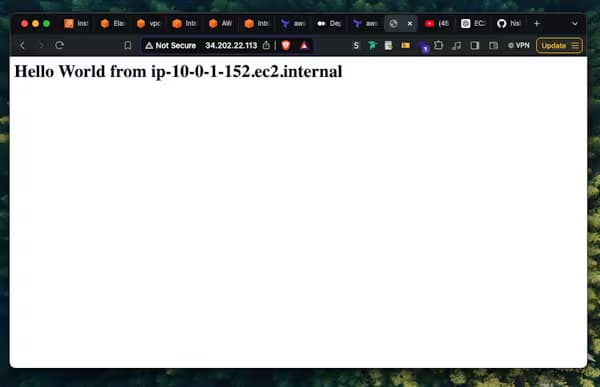
Now when you access the public IP of the instance OR the elastic IP (both should be the same) from your browser, you'll see similar webpage. (Please note to access the ip in http:// and not https://)
